How to Delete Your TextConcierge Account

· 3 min read

Closing your account shouldn't involve emailing support, filling in a form, or logging into a dashboard. So we added one command that handles everything, right inside the Telegram chat you already use.

The Short Version

Open your TextConcierge chat on Telegram and send:

/stop

You'll get one confirmation prompt. Reply YES and your account is closed. That's it.

If you prefer plain English, any of these work just as well:

  • "delete my account"
  • "I want to leave"
  • "close my account"
  • /delete or /deleteaccount

Never Miss an Event: Real-Time Reminders Are Here

· 3 min read

Two updates shipped today that fix one of the most common things people asked about: getting reminded before events actually happen.

Real-time event reminders via Telegram

Until now, TextConcierge could create calendar events and send daily summaries -- but it wouldn't ping you right before something was about to start. If you added "Golf at 6am tomorrow," you'd see it in your morning summary, but you wouldn't get a heads-up 15 minutes before tee time.

That's fixed. TextConcierge now sends a Telegram notification before each event starts:

⏰ Golf -- in 15 min (6:00am) 📍 Pine Hills Golf Club

What you should know:

  • On by default. Every family gets reminders automatically -- no setup needed.
  • Configurable timing. The default is 15 minutes before, but you can set it anywhere from 0 to 60 minutes. Setting it to 0 gives you a "starting now" ping.
  • Works with all your events. Both events you create through TextConcierge and events synced from Google Calendar get reminders.
  • No duplicates. Each event only triggers one reminder, even if the system checks multiple times before it starts.
  • Respects your timezone. Times in the reminder reflect your local timezone, not UTC.
  • Skips all-day events. You won't get a reminder for birthdays or holidays that span the whole day.
  • Skips cancelled events. If a synced Google Calendar event was cancelled, no reminder is sent.

If you'd rather not get event reminders, you can turn them off -- just ask the bot.

"Remind me" now does the right thing

This one was a bug that's been bugging us. If you texted "remind me about golf tomorrow at 6am," TextConcierge would save it as a note and reply "Note saved!" -- which completely missed the point. You wanted a calendar event with a time, not a text note.

The fix: any "remind me" message that includes a date or time now creates a calendar event. Only timeless reminders like "remind me that the wifi password is abc123" get saved as notes.

The rule is simple:

  • "Remind me about X at [time]" or "on [date]" → calendar event
  • "Remind me that X" (no time) → note

This means "remind me" requests now benefit from the new real-time reminders above. Say "remind me about golf tomorrow at 6am" and you'll get a Telegram ping at 5:45am.

Try it now

Open your TextConcierge chat and type something like:

  • "Remind me to take medicine at 2pm"
  • "Add dentist appointment Thursday at 3pm"

You'll get a reminder notification before it starts. That's it -- no settings to configure, no app to install. Just text it and it works.

Best Family Calendar Apps in 2026: Cozi vs TimeTree vs Google (Compared)

· 8 min read

Between school pickups, sports practices, doctor appointments, and shared meals, most families manage 15-20 events per week across multiple people. A shared calendar keeps everyone aligned — but choosing the right one matters when half the family uses Android and the other half uses iPhone.

We compared 8 family calendar apps and 2 chat-based assistants side by side. This is our 2026 update: pricing is current as of April 2026, and we added a decision matrix at the end to help you pick.


Built-in (Free, Already on Your Devices)

Google Family Calendar

Website: calendar.google.com Best for: Cross-platform families already using Gmail.

Google auto-creates a "Family" calendar when you set up a Google Family Group. Everyone sees the same events whether they're on Android, iPhone, or a browser. Permissions are straightforward — add someone to the group and they can view and edit.

Pros: Works everywhere; no extra app; integrates with Google Assistant, Maps, and Meet. Cons: No built-in grocery lists, chores, or meal planning. SMS reminders were removed in 2023 (push notifications or email only). Price: Free.


Apple iCloud Shared Calendars

Website: apple.com/icloud Best for: All-Apple households.

Fast, private sharing with minimal setup. You can share individual calendars with family members and create public read-only links for coaches, babysitters, or extended family.

Pros: Tight integration with Siri and Apple Watch; private by design; no ads. Cons: Requires iCloud. If anyone in the family uses Android, they'll need workarounds or a different app. Price: Free with iCloud (5 GB included; iCloud+ starts at $0.99/mo for 50 GB).


Dedicated Family Organizer Apps

Cozi Family Organizer

Website: cozi.com Best for: Families who want calendar + shopping lists + recipes in one place.

Cozi has been the default "family organizer" app for over a decade. The free tier covers color-coded calendars per family member, shared to-do lists, and a recipe box. Cozi Gold removes ads and adds month view, birthday tracker, and search.

Pros: Simple, proven, and familiar to millions of families. Available on iOS, Android, and web. Cons: Free tier shows ads; the interface hasn't changed much in years; no event chat or commenting. Price: Free. Cozi Gold ~$39/year.


TimeTree

Website: timetreeapp.com Best for: Families juggling multiple shared calendars with built-in event chat.

TimeTree lets you create unlimited shared calendars — one for the kids' activities, one for the carpool group, one for grandparents. Each event has its own comment thread, which reduces the "did you see my text about Tuesday?" problem.

Pros: Unlimited shared calendars; comments and photos on events; Premium adds file attachments and ad removal. Cons: Can get cluttered if you create too many sub-calendars; the free tier shows ads. Price: Free. Premium ~$4.49/mo or $44.99/yr.


FamilyWall

Website: familywall.com Best for: Families who want a private hub: calendar + lists + family feed + optional location sharing.

FamilyWall goes beyond calendar sharing. It includes a private family social feed, shared lists, and (on Premium) real-time location sharing. The "family hub" approach works well for families who want to consolidate several apps into one.

Pros: Combines calendar, lists, photos, and location in a single app; cross-platform. Cons: The number of features can feel overwhelming for families who only need a shared calendar; Premium required for extras like location. Price: Free tier available. Premium ~$4.99-$7.99/mo or $49.99/yr.


FamCal

Website: App Store | Google Play Best for: A straightforward, color-coded shared calendar without extra features.

FamCal focuses on doing one thing well: a shared family calendar that's easy for non-technical relatives to use. Color-coding per family member, recurring events, and a clean month view.

Pros: Lightweight; easy onboarding for older family members; clean design. Cons: Pricing tiers have changed multiple times — check current plans before buying. The lifetime purchase option was removed in recent updates. Price: Free app with in-app purchases. Paid plans from ~$3/mo to ~$39.99/yr.


Chat-Based Assistants (No App Required)

This is the newest category. Instead of asking everyone to install and learn the same app, chat-based assistants let family members add events by sending a text message. The event syncs to a shared Google Calendar that the "calendar people" in the family already use.

TextConcierge

Website: textconcierge.ai Best for: Families where someone won't install another app — they just text instead.

TextConcierge runs on Telegram. Send "Soccer practice Tuesday 4pm" and it creates the calendar event in Google Calendar. No onboarding screens, no account creation beyond Telegram, no learning curve.

The typical setup: pair TextConcierge with a shared Google Calendar. Family members who prefer apps keep using Google Calendar or Apple Calendar directly. Everyone else texts the bot. Events appear on the shared calendar either way. See the full family Google Calendar via Telegram setup guide for details.

Pros: Free Starter plan; works with Google Calendar; natural language input; nothing to install if you already have Telegram. Cons: Currently Telegram-only (no SMS or WhatsApp yet). Price: Free Starter plan available. Try it: @TextConciergeBot on Telegram


Dola

Website: heydola.com Best for: Users who want an AI calendar assistant on WhatsApp, iMessage, or Telegram.

Dola uses AI to parse natural language messages into calendar events, similar to TextConcierge. It supports more messaging platforms (WhatsApp, iMessage, LINE, Telegram) and syncs with Google Calendar and Apple Calendar.

Pros: Multi-platform messaging support; syncs with major calendar apps; group calendar features. Cons: Some features require a paid plan; newer product with a smaller user community. Price: Free tier available. Pro plan for additional features.


Wall Displays (Kitchen Command Centers)

Skylight Calendar (15" Touchscreen)

Website: myskylight.com Best for: A visible, always-on family calendar in the kitchen or hallway.

Skylight turns a wall-mounted touchscreen into a shared family calendar. It syncs with Google Calendar, Apple Calendar, and Outlook, and includes color-coded schedules and chore charts. Family members can add events from their phones; the display updates automatically.

Pros: Large, always-visible display; chore charts built in; works with major calendar platforms. Cons: You still need a phone app for on-the-go edits; hardware cost; optional Plus subscription for extra features. Price: ~$320 (15" model). Skylight Plus subscription ~$39/yr (optional).


Decision Matrix

NeedBest PickRunner-up
Already on Google/Apple ecosystemGoogle Family Calendar (free)Apple iCloud (Apple-only)
Calendar + lists + recipes in one appCoziFamilyWall
Multiple sub-calendars with event chatTimeTreeFamilyWall
Someone in the family won't install an appTextConcierge (Telegram)Dola (WhatsApp/iMessage)
Multi-messaging-platform supportDolaTextConcierge
Private family hub with location sharingFamilyWallApple Find My + iCloud
Simple, lightweight shared calendarFamCalGoogle Family Calendar
Visible wall display for the whole houseSkylight
Free, no strings attachedGoogle Family CalendarTextConcierge (free Starter)

Feature Comparison Table

AppPlatformsShared CalendarsLists/ChoresChat/CommentsPrice (annual)
Google Family CalendariOS, Android, WebYesNoNoFree
Apple iCloudiOS, Mac, WebYesVia RemindersNoFree
CoziiOS, Android, WebYesYesNoFree / $39 Gold
TimeTreeiOS, Android, WebUnlimitedNoYes (per event)Free / $44.99
FamilyWalliOS, Android, WebYesYesYes (family feed)Free / ~$49.99-$95.88
FamCaliOS, AndroidYesNoNoFree / ~$39.99
TextConciergeTelegramVia Google CalNoVia TelegramFree Starter
DolaWhatsApp, iMessage, Telegram, LINEVia Google/Apple CalNoVia messaging appFree / Pro
SkylightHardware + iOS, AndroidVia synced calendarsYesNo$320 + $39/yr optional

What to Look For When Choosing

Cross-platform support is the first filter. If your family mixes iPhone and Android, eliminate Apple iCloud and check that the app works on both. Google Calendar, TimeTree, Cozi, and FamilyWall all pass this test.

Onboarding friction determines whether the whole family actually uses it. The best calendar is useless if half the household ignores it. Apps like Cozi and FamCal are simple enough for grandparents. Chat-based assistants like TextConcierge remove the "install and learn a new app" step entirely.

Feature scope depends on your family. Some want calendar-only (Google, FamCal). Others want lists, meal planning, and location sharing bundled together (FamilyWall, Cozi). Decide what you need before comparing — extra features you won't use just add clutter.

Cost ranges from free (Google, Apple, TextConcierge Starter) to $5-$8/month for full-featured apps, to $300+ for wall displays. Most free tiers show ads; paid tiers remove them and add features like search, attachments, and location sharing.


The Bottom Line

Premium family calendar apps cost $4-$9/month. Wall displays like Skylight add $300+ in hardware. If your main challenge is getting everyone to use the calendar at all, a chat-based assistant like TextConcierge (free) lets reluctant family members text events to a shared Google Calendar without installing anything new.

For most families, the practical answer is: pick Google Calendar or Cozi as the hub, then add TextConcierge or Dola as a bridge for the people who won't open another app. The best family calendar is still the one your whole household will actually use.

Want to try the text-based approach? See how family Google Calendar works via Telegram, or start chatting with TextConcierge on Telegram ->
Google Calendar SMS Notifications Are Gone — Here's What to Use Instead (2026)

· 7 min read

If you've been searching for how to get SMS notifications from Google Calendar, you've probably noticed something frustrating: the option is gone. Google removed SMS notifications from Google Calendar in mid-2023, and they aren't coming back.

For years, Google Calendar could send a text message before any event. It was simple. It worked on every phone. You didn't need a smartphone, a data plan, or even the Google Calendar app. Then Google pulled the feature without much explanation, leaving millions of users looking for alternatives.

This post covers what happened, what still works, and a few approaches worth considering if you relied on Google Calendar SMS alerts to keep your day on track.

How to Sync Caregiver Alerts with Your Calendar (SMS, Telegram, and Google Calendar)

· 7 min read

Caregiving runs on alerts. Medication reminders at 8 AM. Doctor appointments confirmed via text. Shift changes from the home health agency. Status updates from the facility.

These messages arrive as SMS, and most of them describe something that belongs on a calendar. But they don't end up there. The text sits in your messaging app, buried under other conversations within hours. When Thursday's cardiology appointment arrives, you're scrolling back through a week of texts trying to find the address and time.

This is a workflow problem, not a memory problem. The information exists -- it's just trapped in the wrong place.

TextConcierge Now Works Worldwide

· 2 min read

Until today, TextConcierge assumed you lived in the US. Timezones were limited to six American options. Weather only understood zip codes. Temperatures came in Fahrenheit whether you wanted them or not.

That changes now. Three updates shipped today that make TextConcierge useful no matter where you are.

Pick your timezone by city name

The old setup showed a numbered list of US timezones (Eastern, Central, Mountain, Pacific, Alaska, Hawaii). If you lived in London or Tokyo, you were out of luck.

Now you can type a city name, a timezone abbreviation, or pick from an expanded list of 15 zones spanning the Americas, Europe, the Middle East, Asia, and Oceania. Over 100 cities and abbreviations are recognized -- type "London", "IST", "Seoul", "CET", or "Sydney" and it just works.

If you signed up with Telegram's language set to something other than English, we'll suggest a timezone based on that too.

Weather in your units

TextConcierge's daily summaries and weather checks now respect your location. Previously, the weather service only accepted US zip codes and returned Fahrenheit.

Now it works with country codes worldwide, and shows temperatures in Celsius or Fahrenheit based on your preference. If you're in the UK, you'll see 18C, not 64F. Your daily summary pulls weather for your actual locale.

12-hour or 24-hour time -- your call

Event times and reminders now display in whichever format you prefer. Users in countries where 24-hour time is standard (most of Europe, Asia, and South America) will see 14:30 instead of 2:30PM by default.

You can change this in settings at any time.

How defaults work

When you sign up, TextConcierge infers sensible defaults from your Telegram language setting:

  • Country -- used for weather location and unit defaults
  • Temperature unit -- Fahrenheit for the US, Celsius elsewhere
  • Time format -- 12-hour for the US, 24-hour for most other regions
  • Timezone -- suggested based on your language/country

You can override any of these in the settings menu.

Try it

If you haven't started yet: open Telegram, search for @TextConciergeBot, and hit Start. If you're an existing user, your defaults are already set -- just update them in settings if they're not right.

We're building TextConcierge to work for everyone, not just one country. This is the foundation for that. More locale-aware features are coming.

TextConcierge Moves to Telegram — and the Starter Plan is Now Free

· 2 min read

Two changes today.

Why We're Leaving SMS Behind

When we launched TextConcierge, SMS felt like the obvious choice. Everyone has it, no app to install, just text and go. And for a while, it worked great.

But as we grew, we kept running into the same wall: carrier restrictions. Throughput limits, filters that silently drop messages, registration hurdles that vary by carrier. We'd send you a perfectly good reminder and your carrier might just… not deliver it.

SMS was also expensive to operate, and those costs would eventually have to land on your bill.

Why Telegram

We looked at several messaging platforms. Telegram won for practical reasons:

  • Messages arrive instantly, every time. No throttling, no silent drops — no carrier middlemen at all.
  • We can send formatted text, buttons, and interactive menus. SMS can't do any of that.
  • No per-message costs, so we can pass those savings to you.
  • Telegram works on iPhone, Android, desktop, and web.
  • You don't need to share your phone number with us. Just open a chat with our bot.

The core experience stays exactly the same: you text, we handle it. It just works better now.

The Starter Plan is Now Free

Because Telegram eliminates our per-message costs, the Starter plan is now completely free. No trial period, no credit card.

The Starter plan includes:

  • Scheduling and reminders
  • Google Calendar integration
  • Natural language — just text like you'd text a friend

How to Get Started

  1. Open Telegram and search for @TextConciergeBot (or click here)
  2. Hit Start
  3. Say hi — we'll take it from there

If you're an existing SMS user, we'll be reaching out with migration instructions over the next few weeks. Your history and settings will carry over.

What's Next

Telegram gives us room to build things SMS couldn't support — inline buttons, multi-step workflows, and integrations with more of your tools. We'll share updates as they ship.

If you need anything, just text us. Now on Telegram.

Lock Down Your Number: The SMS Security Settings Every Phone Plan Should Have Enabled

· 6 min read

Your phone number is more powerful than most people realize. It's the key to your email, your bank, your family calendar. That makes it a valuable target.

The most dangerous attack is called a SIM swap (or port-out scam). A fraudster calls your carrier, pretends to be you, and convinces a rep to transfer your number to their SIM card. From that point on, every text meant for you — including two-factor authentication codes — goes to them instead. Accounts fall like dominoes.

The good news: every major U.S. carrier now offers free, user-controlled locks to stop this.

Here's your carrier-by-carrier checklist.


Why This Matters If You Use SMS for Anything Important

When your phone number is hijacked, any service that authenticates you by text — your bank, your email, your Google Calendar, and yes, your TextConcierge subscription — becomes accessible to whoever controls your number.

Enabling these protections takes under five minutes. Here's how.


AT&T: Wireless Account Lock + Security Passcode

AT&T officially rolled out its strongest protection, Wireless Account Lock, to all users in July 2025. When enabled, it blocks 12 types of account changes — including SIM swaps, eSIM transfers, number ports, and billing updates. Even AT&T employees cannot make changes while the lock is active.

What to enable:

  • Wireless Account Lock — blocks SIM swaps, number porting, device upgrades, and billing changes all at once
  • Security Passcode — a PIN required before any significant account change is processed

How to set it up:

  1. Open the myAT&T app (this is the only way to enable Wireless Account Lock — it's not available on the website)
  2. Go to your line settings and toggle Wireless Account Lock on
  3. While you're there, set or confirm your Security Passcode under account settings

Pro tip: Remember to temporarily disable the lock if you're doing a legitimate upgrade. Re-enable it immediately after.


Verizon: SIM Protection + Number Lock + 2FA

Verizon has had the most robust protection suite the longest. They actually split the controls into two separate toggles — which means you need to enable both.

What to enable:

  • SIM Protection — blocks unauthorized SIM or eSIM swaps and device changes
  • Number Lock — prevents your number from being ported out to another carrier; while active, no one can generate a Number Transfer PIN
  • Two-Factor Authentication (2FA) — adds authentication via app notification, link, or one-time code for account logins
  • Account PIN — required when calling customer service, blocking social engineering attacks

How to set it up:

  1. Open My Verizon app and go to Account → Profile & Settings → Security Settings
  2. Toggle SIM Protection on for each line
  3. Toggle Number Lock on for each line
  4. Enable Two-Factor Authentication from the same Security Settings menu
  5. Confirm or set your Account PIN

You'll get a confirmation text each time you toggle these on or off — which is itself a useful alert if someone ever tampers with your settings.


T-Mobile (and Metro by T-Mobile): Enhanced SIM Security

T-Mobile overhauled its SIM protection system in 2025 and now offers a more comprehensive per-line toggle system.

What to enable:

  • SIM Protection — locks each line against unauthorized SIM changes; in-store removal requires a photo ID
  • Port Out Protection (Account Takeover Protection) — blocks number porting to another carrier
  • Account PIN — a 6–15 digit PIN required to verify your identity with customer service; your number cannot be ported without it

How to set it up:

  1. Open the T-Life app or sign in at t-mobile.com
  2. Go to Account → select a line → Manage add-ons → Services
  3. Enable SIM Protection and Port Out Protection for each line
  4. Go to your account profile settings and set or confirm your Account PIN

Important: These are per-line settings on T-Mobile. If you have multiple lines on a family plan, repeat the process for each one.


Other Carriers: Xfinity Mobile, Visible, Spectrum Mobile

If you're on an MVNO (a carrier that runs on a major network's infrastructure), check for these equivalents:

  • Xfinity Mobile: Offers a Number Lock feature — log in to your account online to enable it
  • Visible (Verizon network): Offers Line Lock — find it in your Visible account security settings
  • Spectrum Mobile: Offers Account Fraud Protection, but it's off by default — go to account settings to turn it on
  • Google Fi: Offers a SIM lock setting within the Fi app under security

Universal Settings That Apply Everywhere

Regardless of your carrier, these steps apply to every phone plan:

1. Change your SIM PIN Every SIM ships with a default PIN (AT&T's is 1111; many others default to 0000 or 1234). Change it immediately.

  • On iPhone: Settings → Cellular → SIM PIN
  • On Android: Settings → Security → SIM card lock

2. Set a strong, unique account PIN Your carrier account PIN is different from your SIM PIN. Don't reuse a PIN you use elsewhere, and avoid obvious choices like birthdays.

3. Enable account change alerts Most carriers will text or email you when a SIM is changed or a number is ported. Make sure these notifications are active in your account profile.

4. Stop using SMS for 2FA on critical accounts This one is counterintuitive if you love TextConcierge, but for your bank, email, and password manager — switch to an authenticator app like Google Authenticator or Authy. SMS 2FA is better than nothing, but these accounts are too important to leave dependent on your phone number's security.


A Quick Reference Checklist

CarrierFeatureWhere to Enable
AT&TWireless Account LockmyAT&T app → Line Settings
AT&TSecurity PasscodemyAT&T app → Account Settings
VerizonSIM ProtectionMy Verizon app → Security Settings
VerizonNumber LockMy Verizon app → Security Settings
Verizon2FAMy Verizon app → Security Settings
T-MobileSIM ProtectionT-Life app → Account → Manage add-ons
T-MobilePort Out ProtectionT-Life app → Account → Manage add-ons
All carriersAccount PINCarrier app → Account/Profile Settings
All carriersSIM PIN changePhone Settings → Cellular/Security
All carriersChange alertsCarrier account profile → Notifications

The Bottom Line

Your phone number is a master key. It takes about five minutes to put a lock on it.

If you're using TextConcierge to coordinate your family's schedule, notes, and daily life, the last thing you want is someone else taking control of the number that drives it all. Enable these settings today — and while you're at it, make sure every adult on your family plan does the same.

7 Best Family Calendar Apps Compared: Cozi vs TimeTree vs Google (2025)

· 5 min read

We tested and compared the most popular family calendar apps side by side — free and paid — so you don’t have to. Below you’ll find honest pros, cons, and pricing for each, plus a quick-pick guide based on your family’s setup.

Whether you need a simple shared Google Calendar, a full family hub like Cozi or FamilyWall, or even an AI-powered wall display, here’s what actually works in 2025.


Built-in (Free & Already on Your Devices)

Google Family Calendar

Best for: Cross-platform families already using Gmail.
✅ Pros: Auto-creates a “Family” calendar when you set up a Google Family Group; works on any device; easy permissions.
⚠️ Cons: Lacks extras like chores, lists, or meal plans. SMS reminders require workarounds.
💰 Price: Free.


Apple iCloud Shared Calendars

Best for: All-Apple households.
✅ Pros: Fast and private sharing; simple controls; supports public read-only links.
⚠️ Cons: Breaks down if anyone is on Android.
💰 Price: Free with iCloud.


Outlook Family Group Calendar

Best for: Microsoft 365 users.
✅ Pros: Family group calendar lives inside Outlook; works across accounts; ties into Outlook AI scheduling.
⚠️ Cons: Setup feels more “corporate” than family-friendly.
💰 Price: Free with Outlook.com; Microsoft 365 optional.


Dedicated Family Organizer Apps

TextConcierge Calendar Assistant

Best for: Families who live in text threads or have members that don’t want to use an app.
✅ Pros: Adds and edits events via Telegram; works with any phone; connects to Google Calendar; completely free.
⚠️ Cons: Currently Telegram-only (no SMS yet).
💰 Price: Free.

Pair it with Google’s Family calendar (or any shared Google calendar) so the “calendar people” see events in their native apps while everyone else can just text to add, ask, or update plans.

Cozi Family Organizer

Best for: Calendar + lists + recipes, all in one.
✅ Pros: Trusted classic; simple to use; “Gold” tier adds month view, no ads, birthday tracker, and search.
⚠️ Cons: Free tier shows ads; utilitarian interface.
💰 Price: Free; Cozi Gold subscription available.


TimeTree

Best for: Multiple shared calendars (kids, carpool, grandparents) with chat.
✅ Pros: Unlimited shared calendars; comments and chat per event; Premium removes ads and adds attachments.
⚠️ Cons: Can feel cluttered if too many sub-calendars.
💰 Price: Free; Premium ~$4.49/mo or $44.99/yr.


FamilyWall

Best for: Calendar + lists + private family feed + optional live location.
✅ Pros: True “family hub” approach; Premium adds live location sharing and more storage.
⚠️ Cons: More features than some families need; subscription required for extras.
💰 Price: ~$4.99–$7.99/mo or $44.99/yr.


FamCal

Best for: Simple, color-coded shared calendar.
✅ Pros: Lightweight; easy for non-technical relatives.
⚠️ Cons: Paid tiers are confusing; recent reviews note removal of lifetime option.
💰 Price: Free app; paid plans from a few dollars/month to ~$39.99/yr.

📱 Download: App Store · Google Play


(Also worth a look)

  • Family Tools → lightweight chores + calendar combo.
  • OneCal / SyncThemCalendars → great if you need 2-way sync across Google, Outlook, and iCloud.

Wall Displays (Kitchen Command Centers)

Skylight Calendar (15″ Touchscreen)

Best for: A big, visible family “command board” in the kitchen.
✅ Pros: Large wall display; integrates calendars; chore charts included.
⚠️ Cons: Hardware cost; you still need phones for on-the-go edits.
💰 Price: ~$320 (15″ model).


Cozyla Calendar+ 2 (AI-Powered Display)

Best for: Families who want voice-controlled chores/meal planning + calendar.
✅ Pros: Syncs with Apple/Google; adds an AI assistant for lists and reminders.
⚠️ Cons: Premium price; newer ecosystem than Skylight.
💰 Price: ~$899.


Quick Picks

  • Already on Google/Apple/Microsoft? Use the built-in calendar first; add a wall display if you want a visible hub.
  • Want calendar + lists + recipes? Start with Cozi, upgrade to Gold if you hate ads.
  • Need multiple sub-calendars + event chat? Go with TimeTree.
  • Want calendars + SMS access? Use TextConcierge with your Google Family calendar.
  • Want a modern “family hub”? Try FamilyWall.
  • Prefer a wall display? Skylight (value) or Cozyla (AI bells/whistles).

What to Look For

  • Onboarding ease: Can grandparents join without fuss?
  • Cross-platform support: Mixed iPhone/Android/Windows families should favor Google, TimeTree, or FamilyWall.
  • Feature set: Do you want just events, or extras like chores, meal planning, and location sharing?
  • Price vs. ads: Most free apps show ads; Premium usually costs ~$4–$9/month.
  • Hardware or not: Wall displays boost visibility but add cost.

Final Word

Premium family calendar apps are $4-$9 per month, while newer wall hubs lean into AI and hardware bundles. Pairing TextConcierge (now free) with a shared Google calendar gives you texting convenience without asking anyone to download another app.

Whether you stick to a free Google Family Calendar, rely on TextConcierge for quick SMS updates, or invest in a dedicated wall hub, the best calendar is still the one your whole crew will actually use.

Best Practices for a Shared Family Calendar (Google + Text)

· 3 min read

A single shared Family calendar keeps everyone aligned without flooding your personal schedule. Here’s a simple, proven setup that blends Google Calendar with TextConcierge so app users get native reminders and everyone else can just text.

1) Create (or pick) your Family calendar in Google

Use a dedicated calendar named “Family” so shared plans stay separate from personal or work.

Option A — Use Google’s built‑in Family calendar (if you have a Google Family Group):

  • Open Google Calendar on desktop.
  • Look under “My calendars” for one named “Family.” Rename if needed.

Option B — Create a new calendar named “Family”:

  1. On desktop, go to calendar.google.com.
  2. In the left sidebar, next to “Other calendars,” click + → “Create new calendar.”
  3. Name it “Family,” set the time zone, and click “Create calendar.”
  4. Share it with your partner/relatives: Settings for the new calendar → “Share with specific people or groups” → add emails → give “Make changes to events.”

That’s it—you now have a clean place for all family plans.

2) Connect TextConcierge and sync only the Family calendar

Keep personal and work events out of your shared SMS flow by syncing just the Family calendar.

  1. Text “settings” to TextConcierge and choose Calendar to get a secure link.
  2. Tap Connect Google Calendar and pick the right Google account.
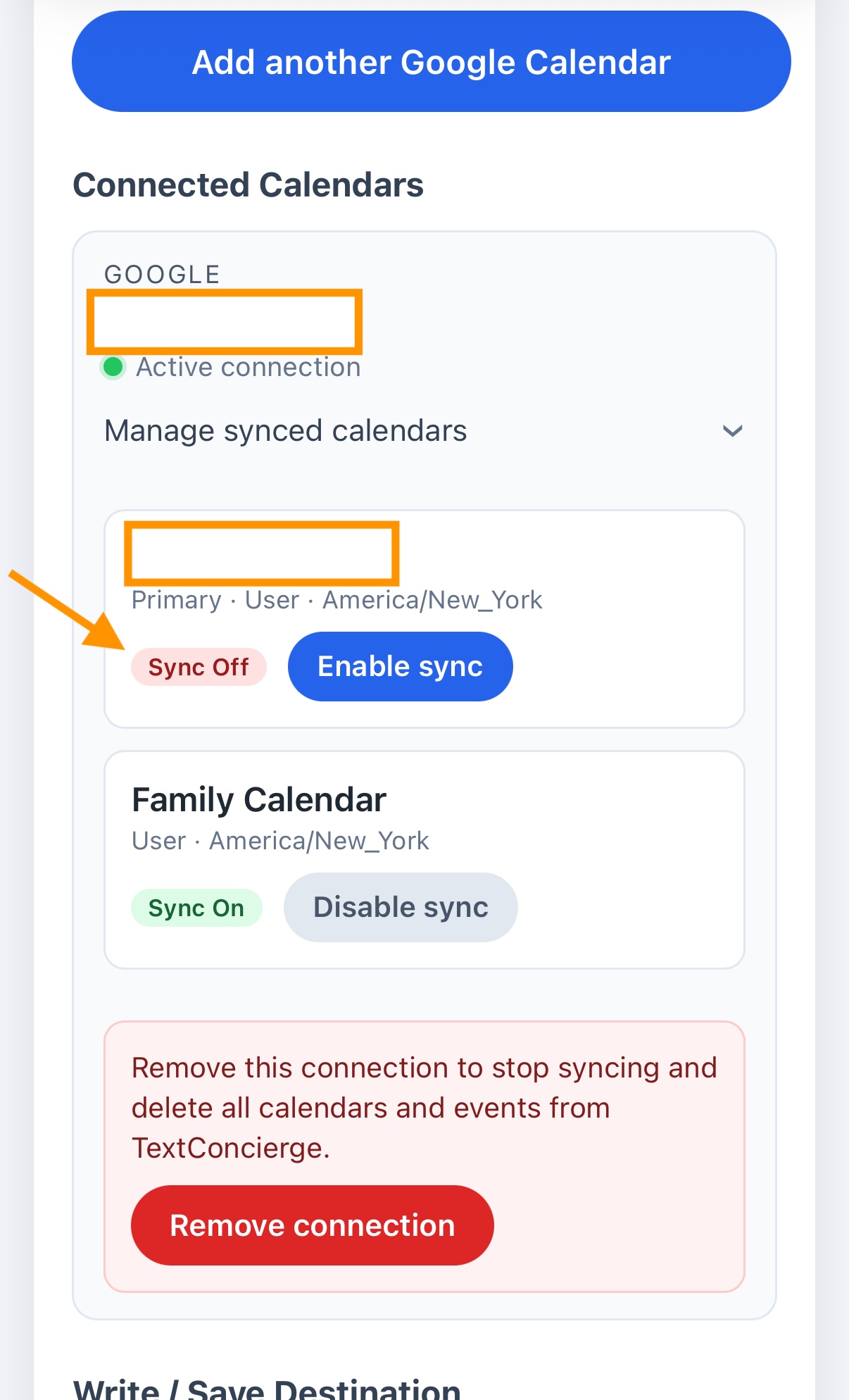
  3. On the calendar list, toggle ON “Family” and toggle OFF personal/work calendars you don’t want in family texts.

Personal sync off; Family sync on

Why this matters:

  • Reduces noise in shared messages.
  • Preserves privacy—personal meetings won’t show up when someone asks, “What’s on the calendar?”

For full connection steps, see the setup guide: How to configure Google Calendar integration for TextConcierge.

3) Enable write access and set “Family” as the write target

Let anyone add or update family plans by SMS while keeping Google as the source of truth.

  1. In TextConcierge → Settings → Calendar, toggle Enable write access.
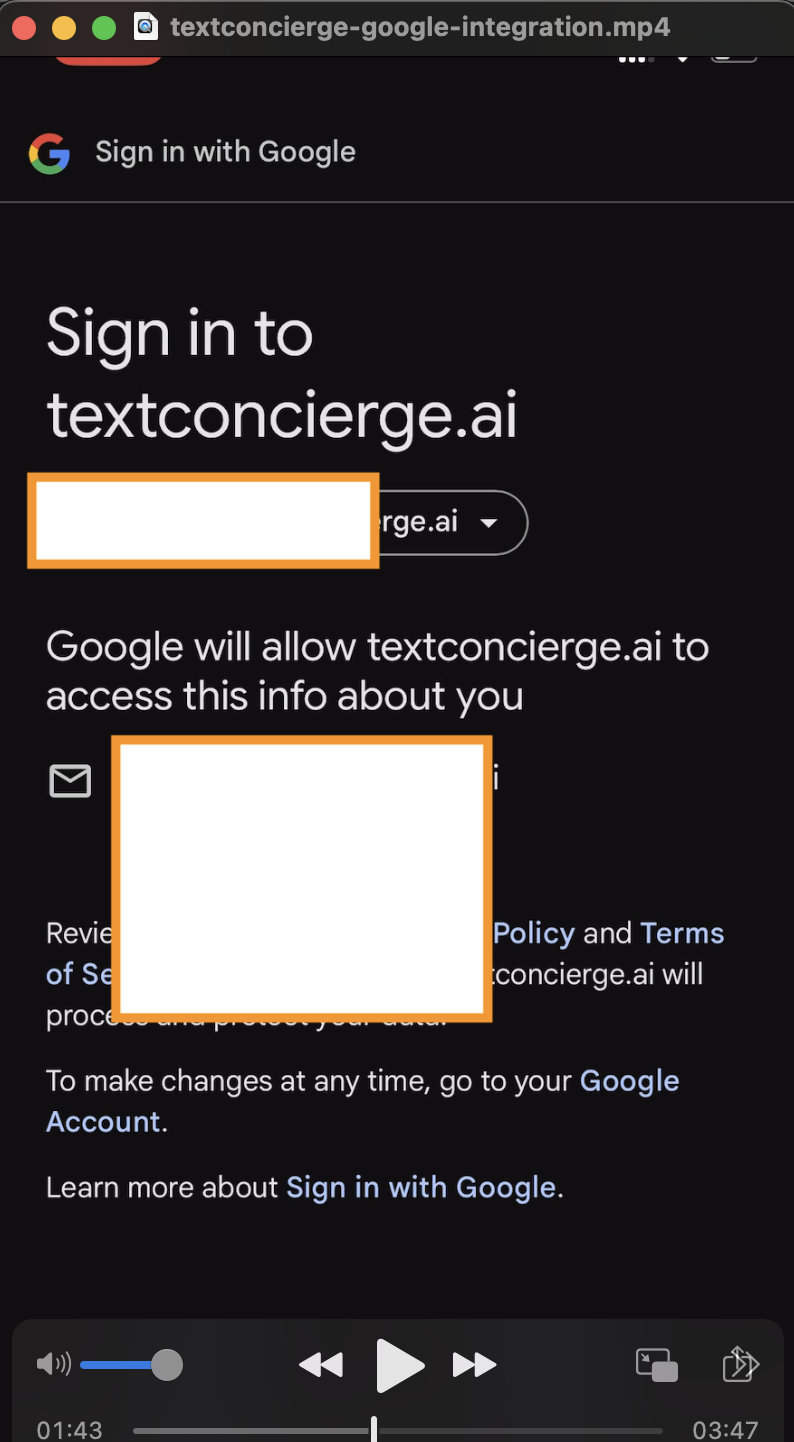
  2. Approve Google’s permission prompt so TextConcierge can manage events.

Granting write permission

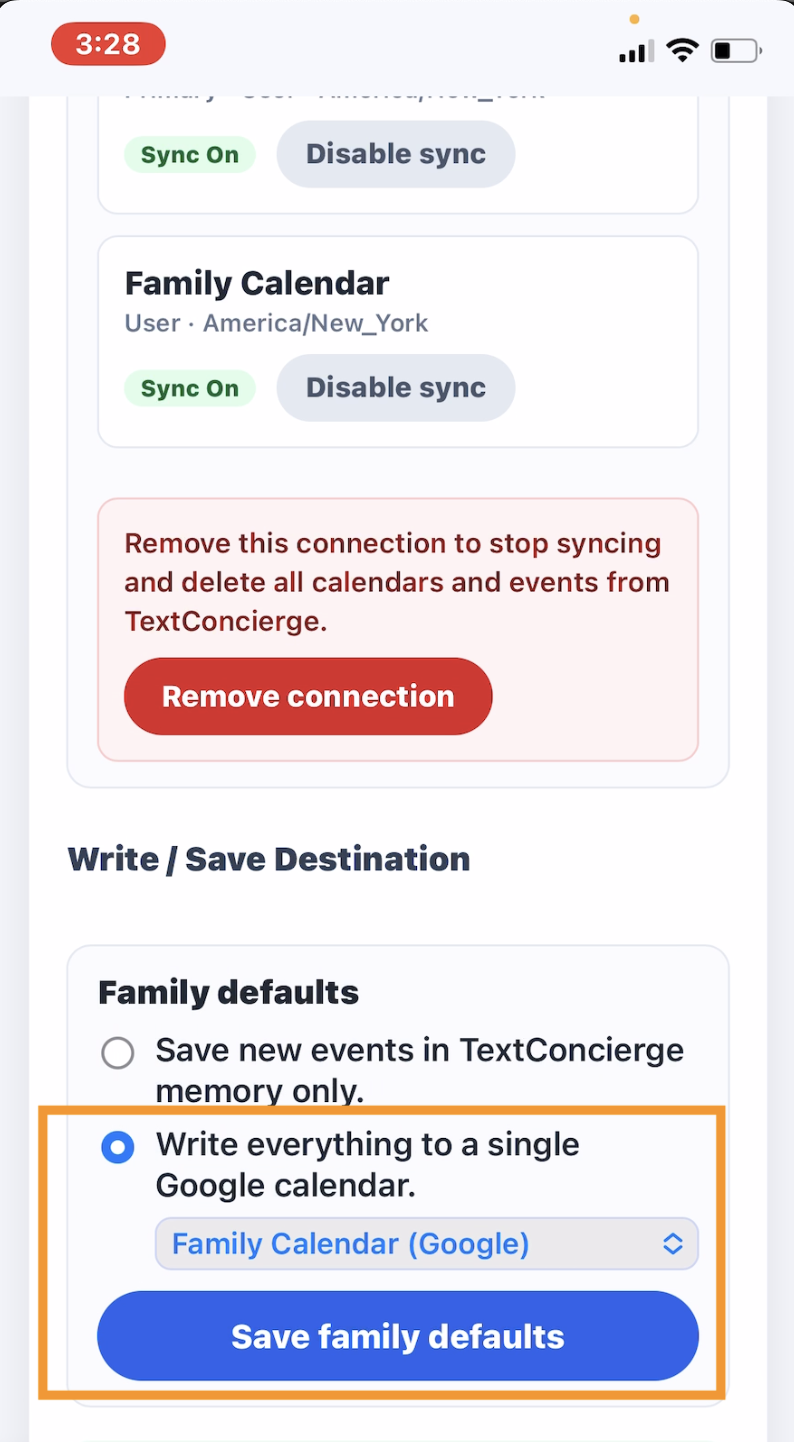
  1. Choose “Family” as the calendar that receives new or edited events and press Save.

Choose the write calendar

Detailed steps live here: Google Calendar setup guide.

4) Enjoy the best of both worlds

  • If someone uses Google Calendar, events show up natively with reminders—no extra app.
  • If someone doesn’t, they can still participate by texting to add, ask, or update.

Try these:

“Add Alex’s soccer practice Saturday 3–4pm on the Family calendar.”
“What’s on the Family calendar this weekend?”
“Move Emma’s recital to 7pm on the Family calendar.”

Pro tips

  • Keep personal items on your personal calendar; keep family plans on “Family.”
  • Use recurring events for routines (practice, carpools, chores) so everyone stays ahead.
  • You can revisit Settings → Calendar anytime to change permissions or switch the write target.

With this setup, your Family calendar stays clean, everyone sees what matters, and planning is as easy as sending a text.