How to configure Google Calendar integration for TextConcierge

· 3 min read

Getting TextConcierge talking to your Google Calendar takes only a few minutes. Follow this hands-on walkthrough to secure the link, grant the right permissions, and decide which calendars should respond to SMS requests.

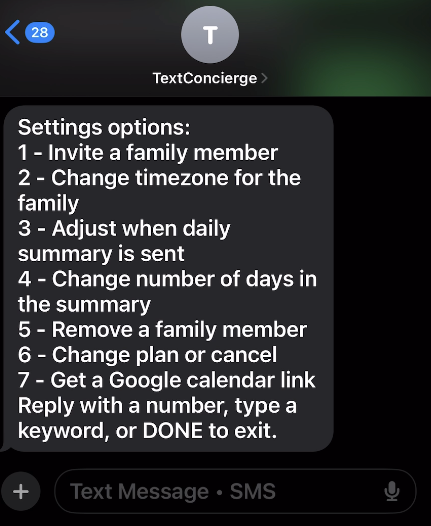
Text “settings” to TextConcierge and choose Calendar(or simply 7). We will text back a one-time, passwordless link that opens the calendar integration page.
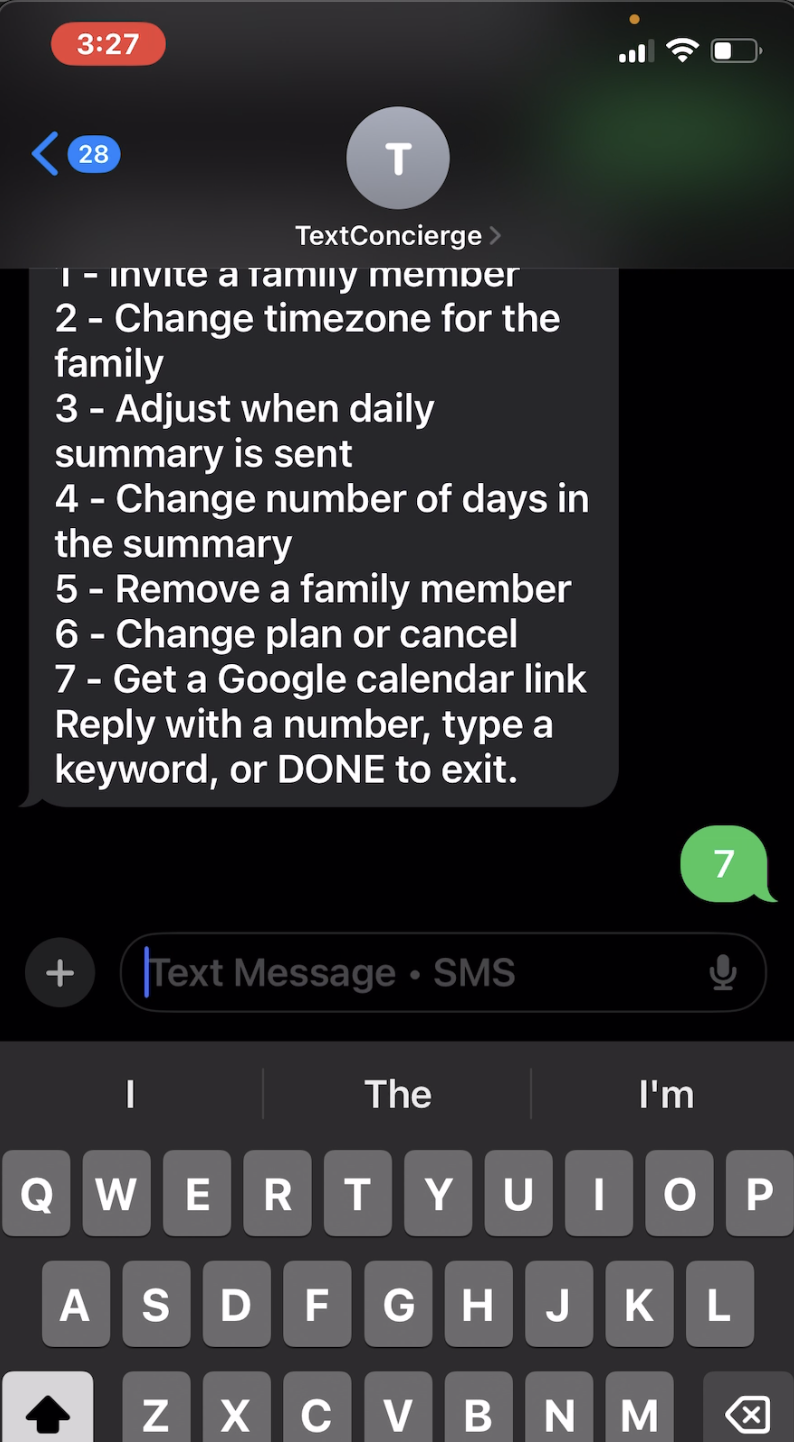
Screenshot: Requesting the secure calendar link

Step 2. Start the Google connection flow (read access)

  1. Tap the link from Step 1 to open the Calendar page.
  2. Select Connect Google Calendar.
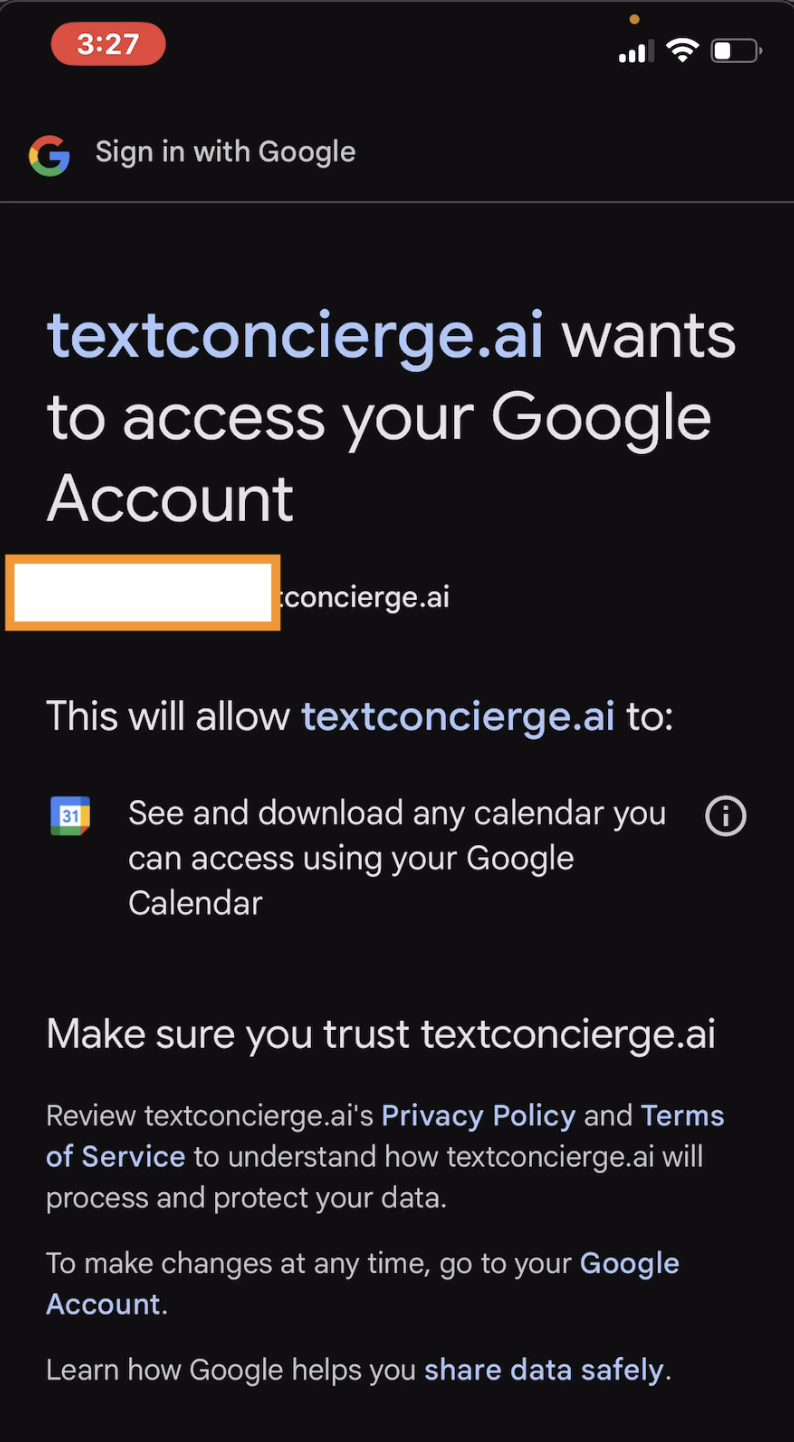
  3. Pick the Google account that owns the calendar you want to read.
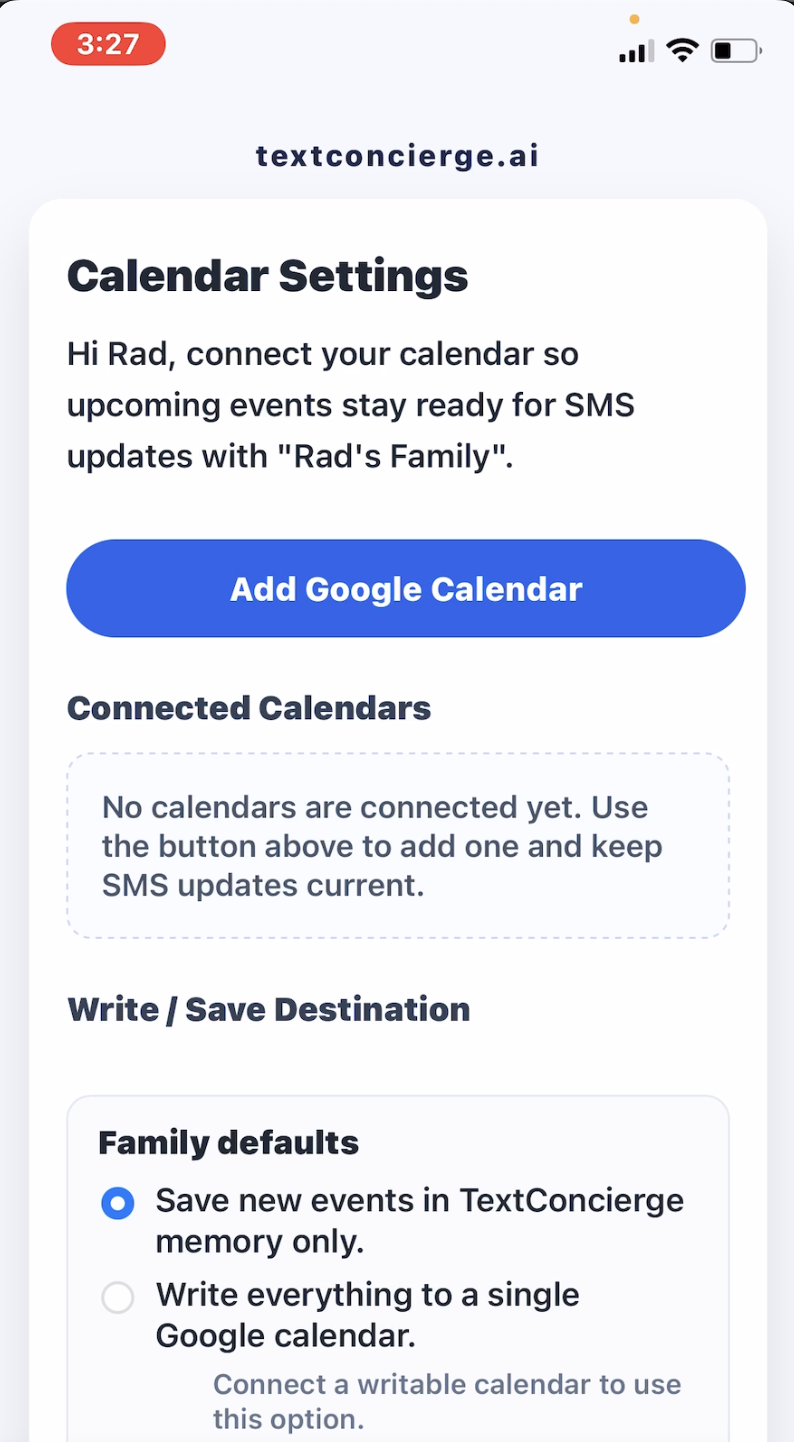
Screenshot: Connecting Google Calendar

Step 3. Approve TextConcierge permissions

Google will show two prompts. Approve both so TextConcierge can keep your calendars in sync:

  • Allow TextConcierge to view your basic account information.
  • Allow TextConcierge to see your calendars and view event details.
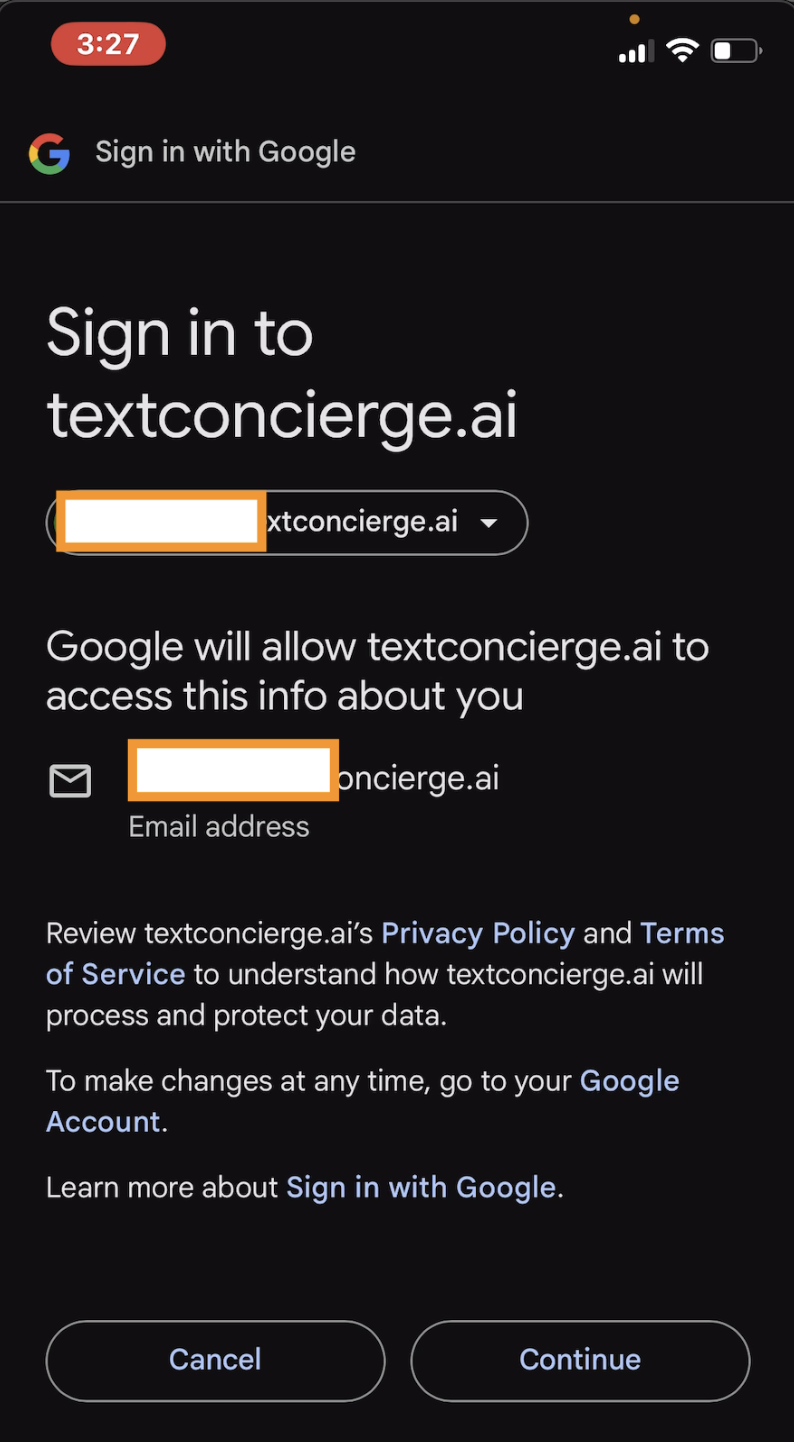
Screenshot: Account selection permission Screenshot: Calendar read permission

Step 4. Choose which calendars stay in sync

After Google sends you back to TextConcierge, you will see every calendar tied to that account—shared family calendars included. Toggle off any secondary calendars you do not want TextConcierge to fetch when you ask for the schedule.
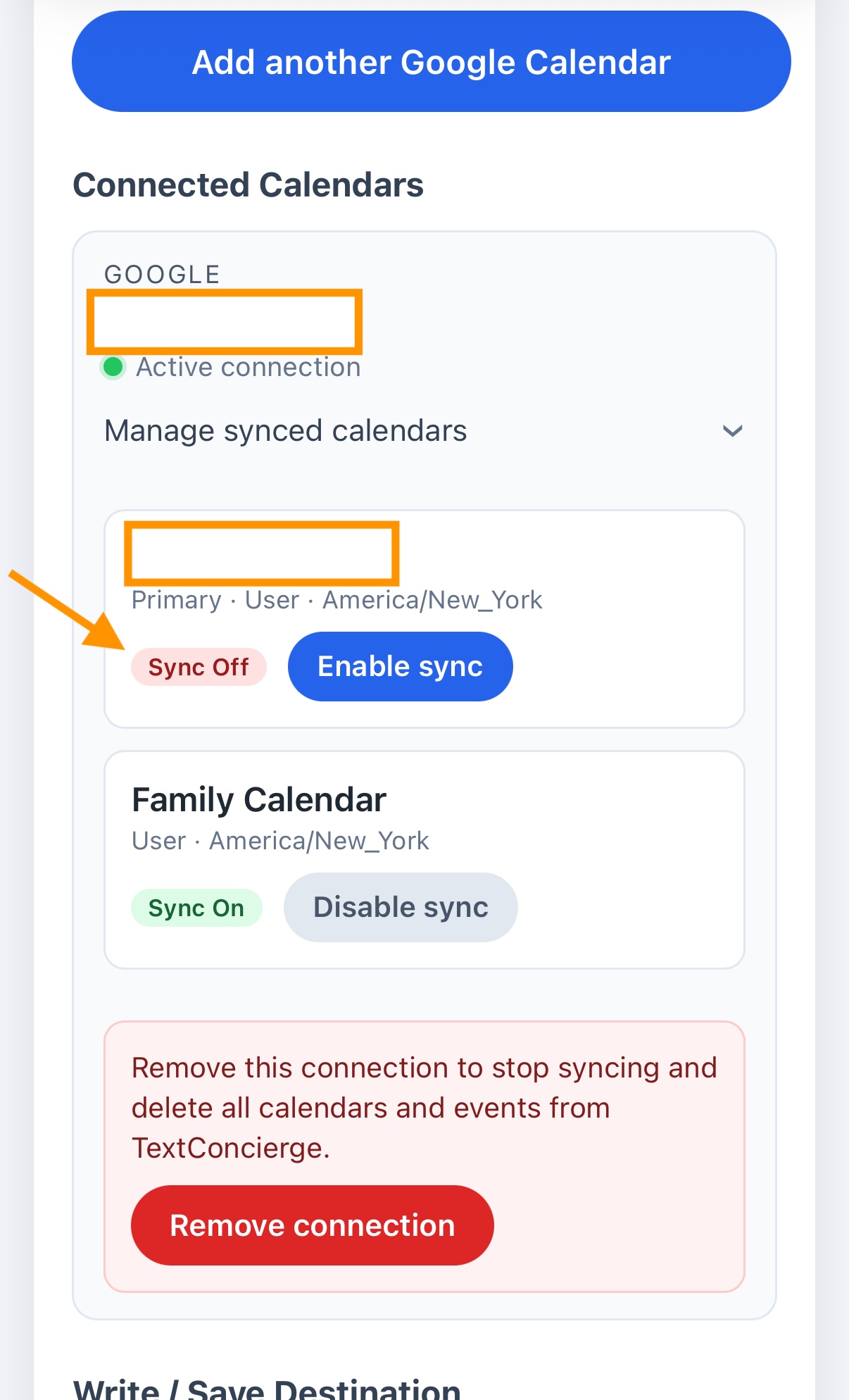
Screenshot: Personal off, Family on

Step 5. Enable write access when you are ready to add events

If you would like to add, edit, or delete events by SMS, turn on Enable write access. This opens a second Google dialog requesting permission to manage your calendars.
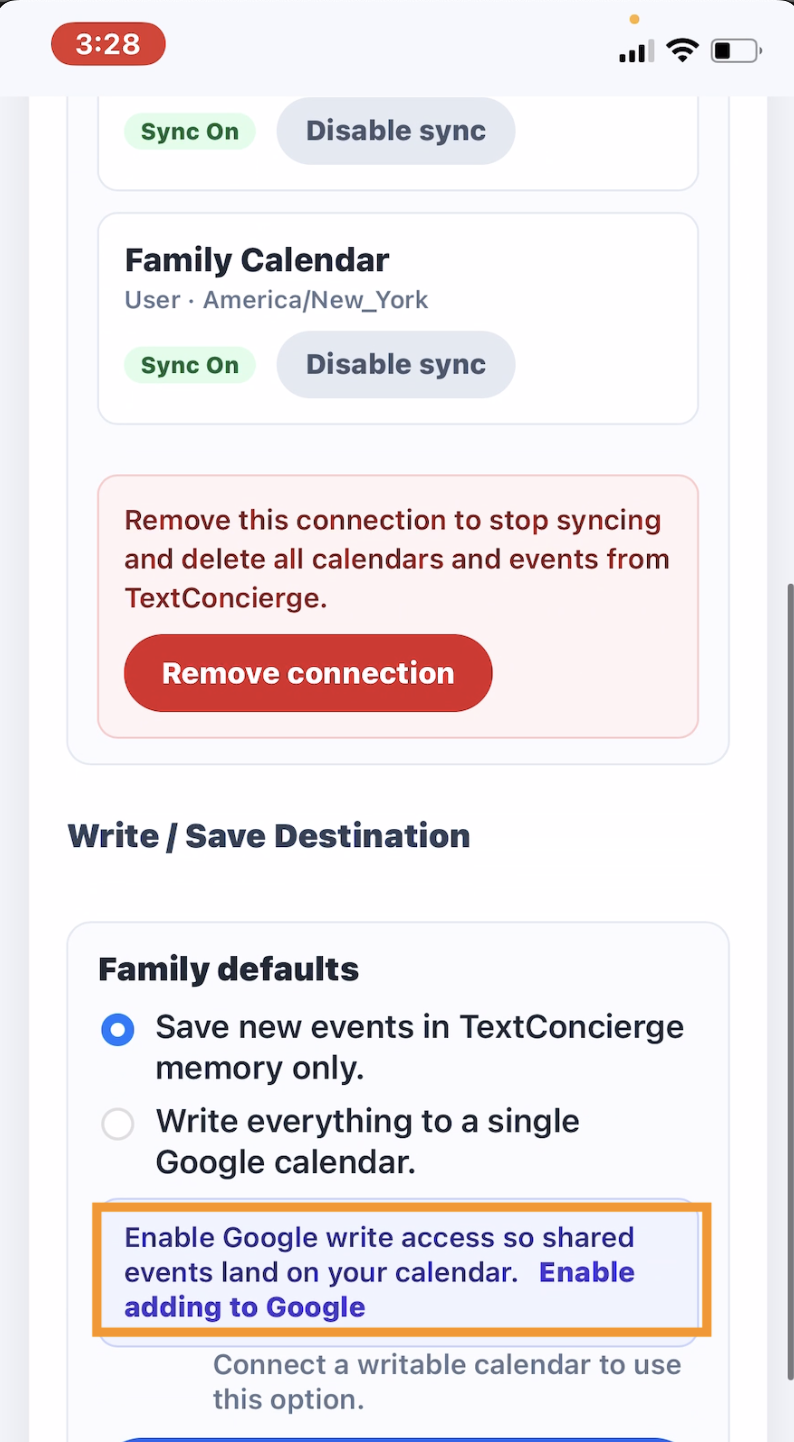
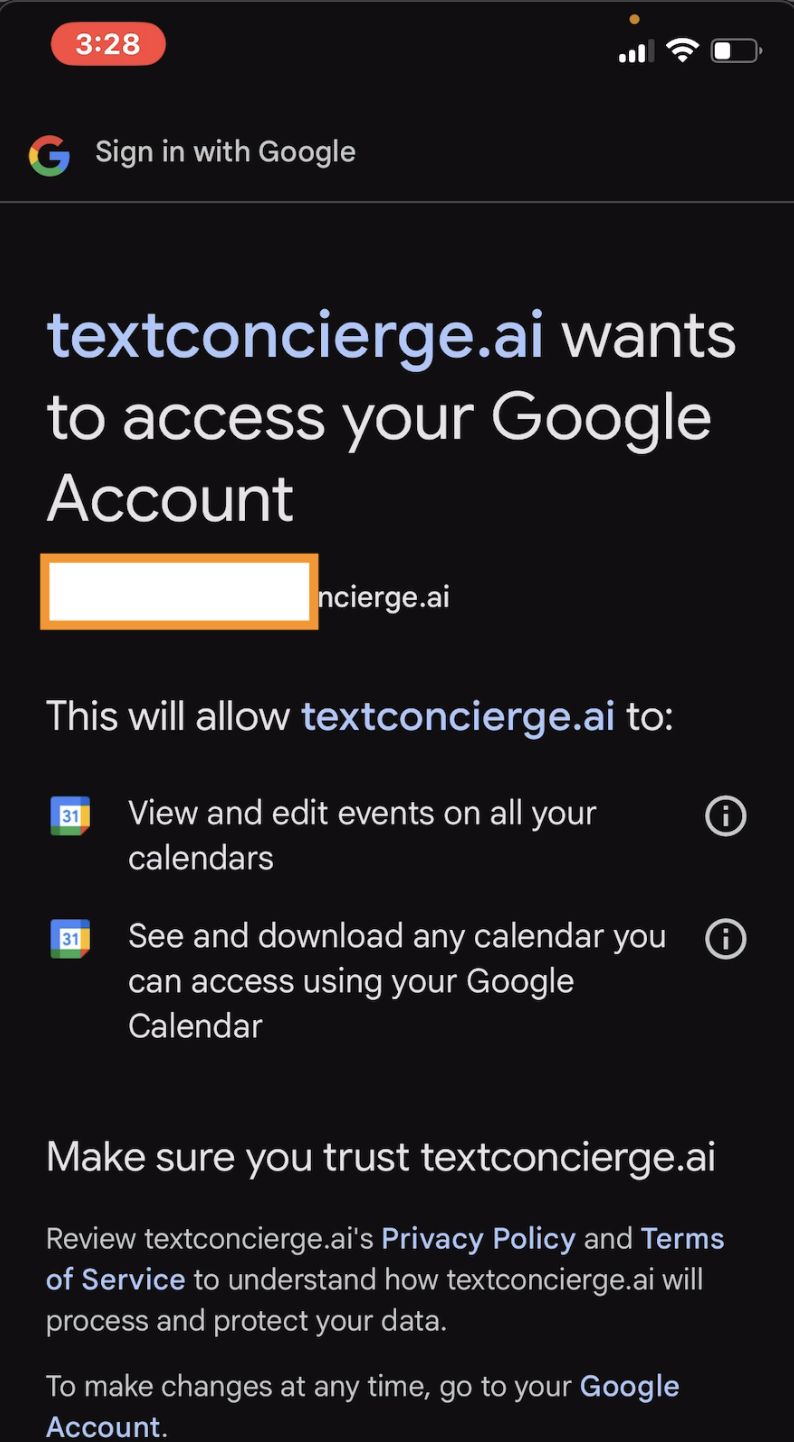
Screenshot: Enabling write access toggle Screenshot: Granting write permissions

Step 6. Pick the calendar TextConcierge writes to

Choose which specific calendar receives new or edited events from SMS and press Save. You can revisit this setting anytime if plans change.
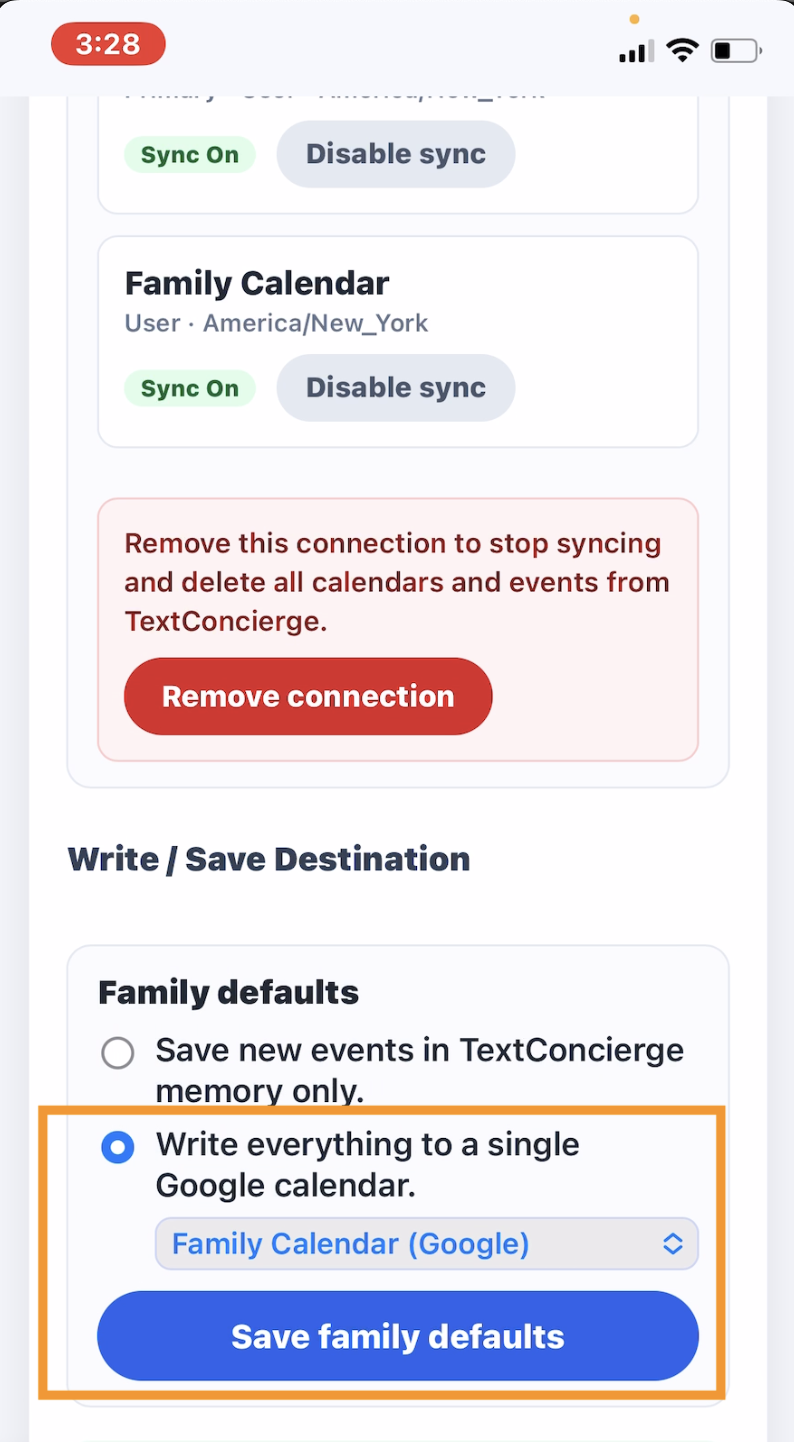
Screenshot: Choosing the write calendar

What happens next

Once read access is on, text what you need and we will show the events from google calendar:

"What’s on the calendar this weekend?"
"When is Alex’s soccer practice?"

With write access enabled, you can also create and adjust plans:

"Add date night Friday 7-10pm on the family calendar."
"Move Emma’s recital from 6pm to 7pm."

You can always return to Settings → Calendar to change permissions, swap the write target, or disconnect entirely. Ready to try it? Send that settings message and we will guide you from there.
“How to Sync Caregiver SMS Alerts with Calendar Events”

· 2 min read

Yes, caregiver SMS alerts can sync with calendar events. TextConcierge connects your Google Calendar to SMS so that caregivers, grandparents, and family members receive schedule updates and reminders by text — without installing any app. When a calendar event is added or changed, the caregiver gets an SMS alert automatically.

How Caregiver SMS Calendar Sync Works

  • Automatic alerts: When someone adds or changes a calendar event, caregivers receive an SMS notification with the updated details.
  • Plain-language access: Caregivers can text back questions like “What’s on the schedule tomorrow?” and get an instant answer.
  • Two-way sync: Caregivers can add or update events by replying via SMS. Changes sync back to Google Calendar in real time.
  • Daily summaries: Schedule a morning SMS recap so every caregiver knows the day’s plan before it starts.

What Caregivers Can Do via SMS

TextConcierge speaks plain language. Caregivers text commands and get results:

“Add Mom’s doctor appointment Wednesday 2pm.”
“What’s on the calendar this week?”
“Move the physical therapy session to Thursday.”
“Send me tomorrow’s summary.”

Setup: Three Simple Steps

  1. Connect once: Head to Settings and tap “Connect Google.” Follow the secure Google prompt to approve access.
  2. Pick your permissions: Stay read-only or enable write access if you want TextConcierge to add and edit calendar entries for you.
  3. Start texting: Ask what’s coming up, add new plans, or tweak times. We will sync with Google and keep every family member informed via SMS.

Built for Caregivers and Families

  • Works even if only one person has a Google account -- caregivers and other family members receive everything through SMS.
  • No apps to install or accounts to create. If a caregiver can text, they can use it.
  • Respects privacy: revoke access anytime from Google or inside TextConcierge.

Try It Now

Already using TextConcierge? Open Settings, connect Google Calendar, and send your first “What’s on our calendar?” text. Want more details? Visit the Google Calendar via SMS page for a full walkthrough. New here? Get Started now.

Have questions or want help rolling it out? Email us at [email protected]. We cannot wait to see what your family does with a smarter, simpler calendar.

Meet the New TextConcierge Settings Hub

· 2 min read

Planning by text works best when you can tweak the details without digging through hidden menus. That’s why we redesigned the TextConcierge Settings hub to surface the controls families ask for most—right from a single page.

Refreshed TextConcierge Settings hub

One Menu, All the Essentials

  • Connect services quickly: Link Google Calendar, toggle write-back, and confirm the connection status at a glance.
  • Daily summary controls: Choose the send time, select how many days to preview, and pause summaries when you head out on vacation.
  • Family roster visibility: See who’s on the plan, resend invites, and confirm who has SMS access.
  • Usage snapshot and plan: Keep tabs on monthly message volume so you can upgrade before hitting the limit.

Designed for Busy Families

The refreshed layout spells out what each toggle does in plain English, so family admin can adjust settings with confidence. No jargon, no endless scrolling.

Getting Around the Hub

  • Calendar & Integrations: Connect Google Calendar, manage permissions, and jump straight to the Google Calendar via SMS page for the full feature tour.
  • Daily Summaries: Set your send window, pick the lookback, and preview the next summary message.
  • Family Members: Invite a caregiver, confirm who has accepted, and remove outdated phone numbers.
  • Account & Plan: Update billing details or upgrade your plan without leaving the page.

Try It Today

If you’re already using TextConcierge, open the Settings link in your SMS thread or visit the dashboard to see the new layout. Not on board yet? Get Started and we’ll help you connect your family, set summaries, and link Google Calendar in minutes.

Questions or feedback? Email us at [email protected]. We love hearing how families bend TextConcierge to fit their routines.

TextConcierge is now out of waitlist

· One min read

You can now Get Started on our home page. We wil send you a text right away to opt-in. Once you reply with "yes" or "subscribe", we will start you free-trial. No credit card required. And send you a welcome message with some examples of texts. Looking forward to your feedback!

Adding Support for Recurring Events

· One min read

We are excited to announce the availability of adding recurring events when you text now. For example, if you say Steve bday 8/15, it will now save Steve's birthday on Aug 15th with recurring frequency of every year. That's it. Enjoy!

Why We Built TextConcierge: Ending the Family Calendar Chaos

· 5 min read

In today's fast-paced world, managing a family's schedule can feel like a full-time job. Between school events, sports practices, doctor's appointments, and social gatherings, calendars quickly become a tangled mess. For many families, the struggle is real: missed appointments, overlapping commitments, and the constant headache of trying to get everyone on the same page. We built TextConcierge because we believe there's a simpler, more intuitive way to manage family life. And some of us hate installing apps on our phones.